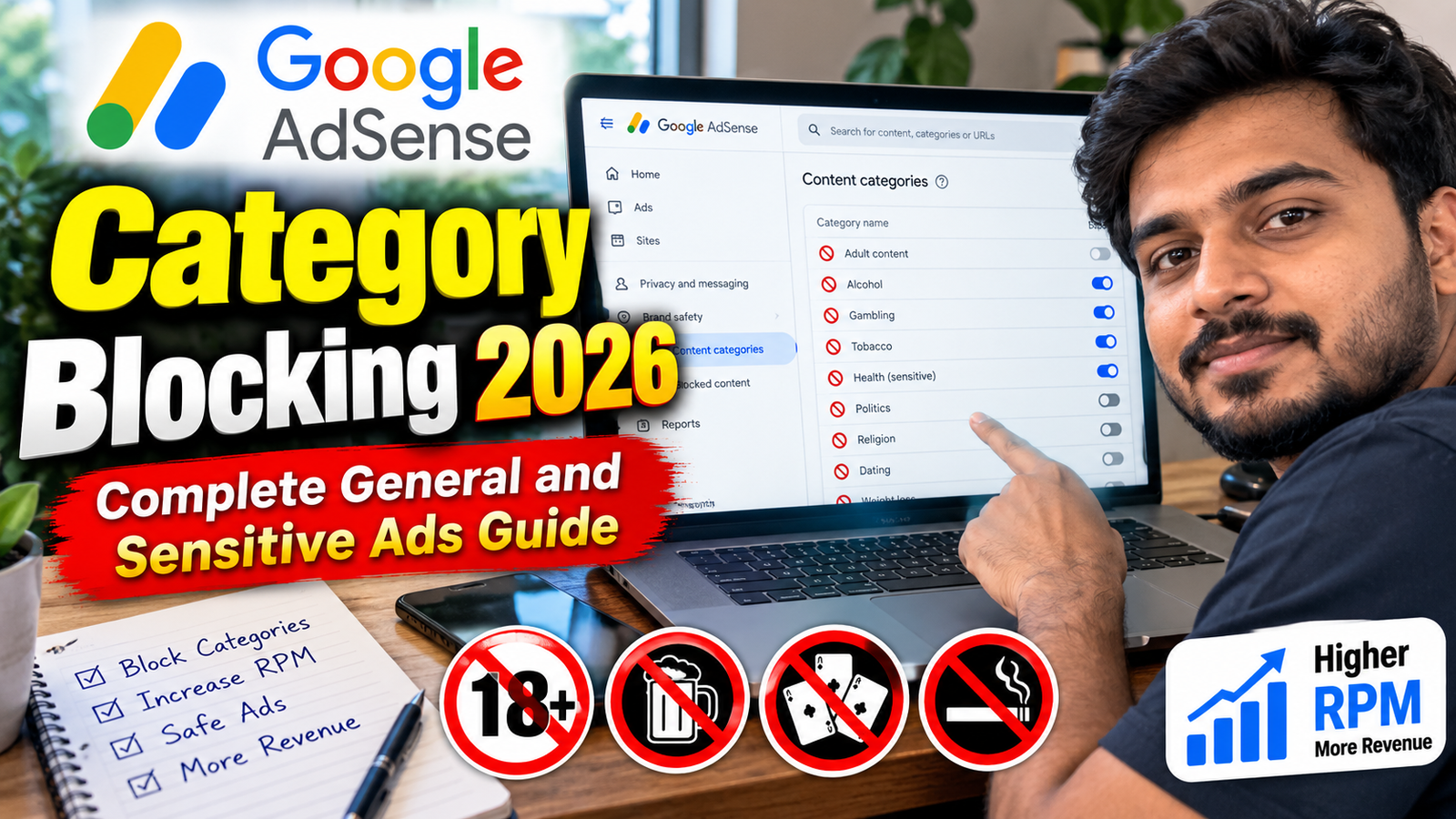
AdSense category blocking allows publishers to prevent groups of advertisements from appearing on their websites. Instead of blocking one advertiser or creative at a time, you can block broader general or sensitive advertising categories.
General categories cover commercial topics such as clothing, property, internet services and vehicles. Sensitive categories cover subjects that some publishers may consider unsuitable, including dating, religion, sensationalism, weight loss and sexual or reproductive health.
Category blocking can help protect your brand and provide a more appropriate advertising experience. However, every blocked category removes eligible ads from the auction. Google therefore recommends using blocking controls sparingly and beginning with the narrowest available option. 2
This guide explains how to use general and sensitive categories, apply blocks to one site, test their revenue impact and handle ads that continue appearing after a category has been blocked.
What Is AdSense Category Blocking?
AdSense category blocking is a Brand Safety feature that lets you allow or block groups of advertisements according to their subject or business area.
AdSense provides several advertising-control options:
- Individual creative blocking
- Advertiser URL blocking
- General category blocking
- Sensitive category blocking
- Authorized Buyer blocking
- Ad-serving controls
These controls are available from the Brand Safety section of an AdSense account. 3
Category blocking is broader than blocking one advertisement. For example, blocking a complete vehicle category could prevent advertisements from many automobile manufacturers, dealerships, insurance providers and automotive-service companies.
Because broad blocks remove more ads from the auction, category blocking should normally be used only when an entire advertising subject is unsuitable.
General vs Sensitive Ad Categories
| Feature | General categories | Sensitive categories |
|---|---|---|
| Main purpose | Control broad commercial topics | Control potentially sensitive subjects |
| Examples | Clothing, internet, property and vehicles | Dating, religion, weight loss and sensationalism |
| Site-level blocking | Available | Available |
| All-sites blocking | Available | Available |
| Default status | Generally allowed | Depends on standard or restricted type |
| Category overlap | Possible | Possible |
| Classification | Automated by Google | Automated by Google |
| Revenue impact | Can be significant when broadly blocked | Depends on demand and category |
General and sensitive categories can overlap. For example, a dating advertisement may belong to both the sensitive Dating category and a general romance or relationships category. Blocking either category may prevent the ad from serving. 4
What Are AdSense General Categories?
General categories represent broad commercial advertising subjects.
Examples can include:
- Apparel
- Business and industrial services
- Computers and consumer electronics
- Finance
- Food and groceries
- Health
- Home and garden
- Internet and telecommunications
- Property
- Shopping
- Travel
- Vehicles
The exact category names and subcategories visible in your account can depend on the advertising language and current AdSense classification system.
Google allows publishers to block a maximum of 200 general categories. General category blocking is supported for ads in a limited set of languages. 5
Why General Category Blocking Is Broad
Suppose you block the complete Finance category because you do not want loan advertisements.
That block may also remove otherwise acceptable ads related to:
- Banking
- Insurance
- Accounting software
- Credit monitoring
- Business finance
- Investment education
A better approach may be to block a more specific subcategory, advertiser URL or individual creative.
How to Block General Categories on One Website
Use site-level blocking when a category is unsuitable for only one website.
For example, you may want to block weight-loss-related commercial categories on a children’s website while allowing them on a health publication.
Follow these steps:
- Sign in to Google AdSense.
- Open Brand safety.
- Select Content.
- Click Blocking controls.
- Search for the website you want to manage.
- Select the website.
- Click Manage general categories.
- Find the required category or subcategory.
- Change its status to blocked.
- Review the setting before leaving the page.
AdSense automatically saves general-category changes when a category is selected. 5
Site-level blocking allows you to protect one publication without unnecessarily removing the same advertisers from unrelated websites.
How to Block General Categories Across All Sites
Use an all-sites block only when the category is unsuitable for every AdSense website connected to the product.
Follow these steps:
- Open Brand safety.
- Select Content.
- Click Blocking controls.
- Do not select an individual website.
- Click Manage general categories.
- Find the required category.
- Change its status to blocked.
Product-level blocking can have a larger revenue effect because the entire category becomes unavailable across all applicable sites.
If you manage several websites, begin with site-level blocking unless the category clearly conflicts with every publication.
What Are AdSense Sensitive Categories?
Sensitive categories contain advertisements that may be legal and policy-compliant but unsuitable for certain audiences, brands or editorial environments.
Google separates sensitive categories into two types:
- Standard sensitive categories: Allowed by default
- Restricted sensitive categories: Blocked by default
Category availability can depend on the publisher’s country and applicable advertising rules. For example, a restricted gambling category may not appear in accounts where gambling advertising is not permitted. 4
Standard Sensitive Categories
Examples of standard sensitive categories currently documented by Google include:
- Birth control
- Astrology and esoteric services
- Cosmetic procedures and body modification
- Consumer loans in certain supported languages
- Dating
- Reference to sex
- Religion
- Sensationalism
- Sexual and reproductive health
- Social casino games
- Weight loss
Standard sensitive categories are generally allowed unless you block them. Some categories are available only in particular advertising languages. 4
Dating
This category can include online dating services and dating communities.
Consider blocking it when:
- The website is intended for children or teenagers.
- Dating ads conflict with your brand.
- The site serves religious or family-oriented content.
- Users have complained about inappropriate creatives.
Sensationalism
This category includes advertisements designed to attract attention through shocking, exaggerated or curiosity-based claims.
Consider blocking it when:
- Your publication emphasizes professional credibility.
- The creatives use clickbait-style claims.
- Sensational advertisements damage reader trust.
- The ad design conflicts with your editorial standards.
Social Casino Games
Social casino games simulate gambling activities but do not offer users an opportunity to win money or valuable prizes.
Do not confuse this category with real-money gambling. It may still be inappropriate for children, educational sites or audiences sensitive to gambling-related content. 4
Restricted Sensitive Categories
Restricted sensitive categories are blocked by default.
Google currently documents examples including:
- Gambling and betting
- Alcohol
The categories displayed in your account depend on your country and eligibility. Google applies regional legal restrictions even when a publisher chooses to allow one of these categories. 4
Gambling and Betting
This can include online and location-based gambling advertisements.
Do not enable gambling advertisements without reviewing:
- Your publisher country
- Visitor countries
- Audience age
- Website content
- Local legal requirements
- Brand suitability
Google strongly recommends that publishers not enable gambling advertising when their primary audience is under 18. 4
Alcohol
This can include alcohol-brand advertising, informational promotions and eligible online alcohol sales.
Google recommends avoiding alcohol advertising when the primary audience is under 18 or when the website topic makes the association inappropriate, such as addiction-recovery or pregnancy content. Availability also depends on country-level advertising rules. 4
Do not allow restricted sensitive categories only because you expect a higher CPC or RPM.
How to Block Sensitive Categories on One Site
Follow these steps:
- Sign in to AdSense.
- Click Brand safety.
- Select Content.
- Open Blocking controls.
- Search for the website.
- Select the required site.
- Click Manage sensitive categories.
- Review the available categories.
- Change unsuitable categories to blocked.
The changes are automatically saved when selected. Site-level sensitive-category blocking lets you use different advertising standards for different publications. 4
How to Block Sensitive Categories Across All Sites
Follow these steps:
- Open Brand safety.
- Select Content.
- Click Blocking controls.
- Click Manage sensitive categories without selecting one website.
- Review each category.
- Block the categories that are unsuitable across every site.
You can also use the Preview ads option to open the Ad Review Center and inspect creatives associated with your inventory. 4
Important 2026 Update: Significant Skin Exposure
The Significant Skin Exposure sensitive category was deprecated during 2025. Google began removing it on July 30, 2025, and existing blocks stopped applying beginning September 30, 2025.
Publishers should not rely on this deprecated category in 2026.
Google recommends using more precise alternatives when such creatives are unsuitable:
Sensitive categories
- Reference to sex
- Sexual and reproductive health
- Dating
General categories
- Apparel → Swimwear
- Apparel → Underwear
Advertisements violating Google advertising or publisher policies remain subject to Google’s policy systems independently of publisher category preferences. 6
How to Block Guns and Firearms Ads
Guns and firearms advertisements are not included in the sensitive-category controls.
Google recommends using one or more of these methods:
- Open general categories.
- Navigate to Business & Industrial.
- Open Security Equipment & Services.
- Block Guns & Firearms.
- Block known advertiser domains where appropriate.
- Use the Ad Review Center to identify and block individual creatives.
This special case is important because searching only inside sensitive categories will not display the necessary control. 7
Site-Level vs All-Sites Blocking
| Situation | Recommended approach |
|---|---|
| Category unsuitable for one publication | Site-level block |
| Category unsuitable for every publication | All-sites block |
| One advertiser is the problem | Advertiser URL block |
| One creative is the problem | Ad Review Center block |
| The whole advertising topic is unsuitable | Category block |
| Ad appears to violate a policy | Block and report |
Site-level controls currently apply to AdSense for Content and support advertiser URLs, general categories and sensitive categories. A site-level rule can be applied to one site at a time rather than to a selected group of sites. 2
Why Category Percentages May Not Total 100%
The general- and sensitive-category pages may display impression percentages that total more or less than 100%.
This can happen because:
- One advertisement may belong to multiple categories.
- Some ads may not be classified into a category.
- General and sensitive category classifications can overlap.
Therefore, category percentages should not be interpreted as mutually exclusive traffic segments. 5
Why Category Blocking Is Not Perfect
Google classifies advertisements automatically rather than relying only on the category selected by the advertiser.
Its technology attempts to identify the most suitable general and sensitive categories, but Google does not guarantee that every related advertisement will be categorized or blocked correctly. 4
You may occasionally see an unwanted advertisement because:
- It was assigned to another category.
- It belongs to more than one category.
- The creative uses a different destination or format.
- The advertiser changed the creative.
- The classification has not yet been updated.
Use category blocks together with advertiser URL controls and the Ad Review Center when greater precision is required.
Why Blocked Category Ads May Still Appear
Category-blocking changes can take up to 24 hours to become fully effective.
You may also continue seeing an ad inside the Ad Review Center because that interface displays creatives that received impressions during the previous 30 days. A historical listing does not necessarily mean that the ad remains eligible to serve. 8
Another possibility is creative reclassification. An advertisement may have received impressions before Google placed it into the category you blocked.
Recommended Response
- Wait up to 24 hours.
- Test as a logged-out visitor.
- Locate the creative in the Ad Review Center.
- Review its assigned categories.
- Block the individual creative if necessary.
- Block the advertiser URL if the problem continues.
- Report the ad when it appears to violate Google Ads policies.
Can AdSense Category Blocking Reduce Revenue?
Yes. Category blocking removes eligible advertisements from the auction.
Fewer eligible ads can mean:
- Lower auction competition
- Reduced ad coverage
- Fewer relevant advertisers
- Lower estimated earnings
- Lower Page RPM or Impression RPM
Google may display recommendations suggesting that publishers allow previously blocked general categories when its simulations predict that allowing them could increase earnings. However, the actual revenue result is not guaranteed. 9
Category blocking should primarily support:
- Brand safety
- Audience suitability
- Editorial standards
- Legal or regional requirements
- User trust
Do not use broad category blocking as a method for trying to remove low-CPC ads.
Use the Narrowest Suitable Blocking Control
Follow this order to reduce unnecessary revenue impact:
- Block one individual creative.
- Block a specific advertiser URL.
- Block the advertiser’s Google Ads account if necessary.
- Block a narrow subcategory.
- Block a complete general category.
- Block a complete sensitive category.
- Block an Authorized Buyer only when necessary.
Google recommends starting with the control that removes the fewest advertisements. 2
Reporting Policy-Violating Ads
Category blocking is intended for editorial and brand-safety preferences. If an advertisement appears to violate a Google Ads policy, use Block and report inside the Ad Review Center.
Potential reasons for reporting can include:
- Counterfeit products
- Phishing
- Illegal goods or services
- Misleading claims
- Prohibited healthcare products
- Tobacco
- Weapons
- Sexual content involving minors
- Trademark violations
Google may not manually review every report, but publisher feedback can be incorporated into its advertising-review systems. 10
How to Run an AdSense Category Experiment
Instead of permanently allowing or blocking a category based on assumptions, you can create a Blocking Controls experiment.
Google currently supports experiments involving:
- General categories, including first-level subcategories
- Sensitive categories
- Ad-serving opt-outs
Only one Blocking Controls experiment can run at a time. Initial results may require several days to appear. 11
Steps to Create an Experiment
- Sign in to AdSense.
- Open Optimization.
- Click Experiments.
- Select Create new experiment.
- Find the Blocking controls card.
- Click Create new experiment.
- Name the experiment.
- Select general or sensitive categories.
- Add the category you want to test.
- Configure the variation as allowed or blocked.
- Decide whether Google can select the winner.
- Start the experiment.
Do not test several unrelated categories simultaneously unless you are comfortable measuring their combined effect.
What Metrics Should You Monitor?
Record a baseline before changing category settings.
Monitor:
- Estimated earnings
- Page RPM
- Impression RPM
- Ad impressions
- Coverage
- Ad CTR
- Active View
- Mobile performance
- Desktop performance
- Visitor country
- User complaints
- Conversion activity
Revenue should not be the only measurement. A category may generate income while creating significant audience or brand-safety problems.
Recommended Setup for an AdSense-Focused Website
For an AdSense and blogging website, begin with most general commercial categories allowed. Business, software, hosting, marketing and technology advertisers can be relevant to readers interested in website monetization.
Review sensitive categories individually.
A cautious setup may include:
| Category | Suggested action |
|---|---|
| Sensationalism | Consider blocking |
| Dating | Review audience suitability |
| Reference to sex | Consider blocking |
| Sexual and reproductive health | Review relevance |
| Social casino games | Consider blocking |
| Gambling and betting | Keep blocked unless clearly appropriate |
| Alcohol | Keep blocked unless clearly appropriate |
| Weight loss | Review creatives before deciding |
| Religion | Decide according to editorial policy |
| General business and technology | Normally allow |
These are editorial recommendations rather than universal AdSense requirements. Your decision should reflect your audience, legal requirements and publication standards.
30-Day Category Blocking Plan
Days 1–5: Audit Current Settings
- Export or record all blocked categories.
- Review site-level and all-sites blocks.
- Check for deprecated controls.
- Identify broad categories that may be unnecessarily blocked.
- Record current revenue and coverage.
Days 6–10: Review Actual Creatives
- Open the Ad Review Center.
- Filter by sensitive and general categories.
- Review high-impression creatives.
- Identify recurring advertisers.
- Mark acceptable advertisements as reviewed.
Days 11–15: Apply Narrow Controls
- Block individual problematic creatives.
- Block advertiser URLs where necessary.
- Use site-level category blocks.
- Avoid broad account-wide blocks.
- Wait up to 24 hours for changes.
Days 16–25: Run an Experiment
- Select one important category.
- Create a Blocking Controls experiment.
- Avoid changing other ad settings.
- Monitor revenue and audience feedback.
- Allow enough time for initial results.
Days 26–30: Evaluate
- Compare Page RPM and coverage.
- Review whether unwanted ads declined.
- Check user complaints.
- Keep blocks with a clear editorial purpose.
- Remove blocks that provide no meaningful benefit.
AdSense Category Blocking Checklist
- I reviewed both general and sensitive categories.
- I understand standard and restricted sensitive categories.
- Site-level blocking is used where possible.
- Broad product-level blocks are limited.
- Deprecated categories have been replaced.
- Restricted categories remain blocked unless intentionally allowed.
- Individual creatives are reviewed first.
- Advertiser URL blocking is used for specific businesses.
- Policy-violating ads are reported.
- I allow up to 24 hours for changes to apply.
- Revenue and coverage are monitored.
- Category experiments are used where appropriate.
- The audience’s age and location are considered.
- Blocks are reviewed periodically.
Frequently Asked Questions
How do I block an AdSense category?
Open Brand safety → Content → Blocking controls, select a website when needed, and open Manage general categories or Manage sensitive categories. Change the required category to blocked. 4
How many general categories can I block?
AdSense currently permits a maximum of 200 blocked general categories. 5
Are sensitive categories blocked by default?
Standard sensitive categories are generally allowed by default. Restricted sensitive categories are blocked by default. 4
Can I block a category on only one website?
Yes. Site-level general- and sensitive-category controls are available for AdSense for Content. 2
Why do category percentages exceed 100%?
An advertisement can belong to multiple categories, while some ads may remain unclassified. 4
Will blocking low-paying categories increase CPC?
There is no guarantee. Broad category blocking can reduce auction competition and potentially lower revenue.
Why do blocked ads still appear?
Allow up to 24 hours for the block to apply. You may also be seeing historical data in the Ad Review Center or a differently classified creative. 8
Can I block gambling advertisements?
Restricted gambling and betting controls may be available depending on your country. They are blocked by default where available. 4
Is Significant Skin Exposure still available?
The category was deprecated in 2025, and existing blocks stopped applying beginning September 30, 2025. Use more precise sensitive and apparel-category controls instead. 6
Can I test a category before permanently blocking it?
Yes. Create a Blocking Controls experiment under Optimization → Experiments. Only one experiment of this type can run at a time. 11
Conclusion
AdSense category blocking can help publishers protect their brand and prevent unsuitable general or sensitive advertisements from appearing.
Begin with site-level settings and the narrowest possible blocking control. Block an individual creative or advertiser before removing an entire category from the auction.
Review standard and restricted sensitive categories carefully, replace deprecated controls and avoid enabling gambling or alcohol advertisements without considering audience age, regional restrictions and editorial suitability.