With the increasing importance of mobile accessibility, the Google AdSense app has become a vital tool for publishers and content creators who want to manage their ad revenue on the go. For beginners venturing into online monetization, understanding how to install and set up the Google AdSense app properly in 2025 can streamline earnings monitoring and account management. This comprehensive step-by-step guide walks you through everything from downloading the app to optimizing your account for consistent income flow.
Why Use the Google AdSense App?
The Google AdSense app offers several advantages to publishers:
-
Real-time Earnings Tracking: Monitor your revenue anytime, especially crucial during campaign adjustments.
-
Instant Notifications: Get alerts for payment milestones, policy changes, and ad performance anomalies.
-
Convenient Management: Pause or enable ads, check reports, and review site performance with ease.
-
Multi-Account Support: Manage several AdSense accounts from a single interface.
-
Mobile Optimization: Intuitive design tailored for smartphone and tablet users.
For beginners, the app simplifies access to essential account functions without needing desktop access.
Step 1: Confirm Eligibility and Existing AdSense Account
Before installing, make sure you have:
-
An active Google AdSense account approved by Google.
-
A compatible Android or iOS device.
-
Internet connectivity for downloading and syncing data.
If you don’t have an account, you’ll first need to apply via the official AdSense website.
Step 2: Download the Google AdSense App
-
For Android Users:
-
Open the Google Play Store.
-
Search for “Google AdSense”.
-
Locate the official app by Google LLC.
-
Tap “Install” and wait for download and installation.
-
-
For iOS Users:
-
Open the Apple App Store.
-
Search for “Google AdSense“.
-
Tap “Get” and authenticate download.
-
Once installed, open the app.
-
Step 3: Log Into Your Account
-
Open the app after installation.
-
Enter your Google credentials used for your AdSense account.
-
If you have multiple accounts, select the appropriate one or add more.
-
Enable notifications and permissions requested to stay updated.
Step 4: Understand the App’s Dashboard and Features
-
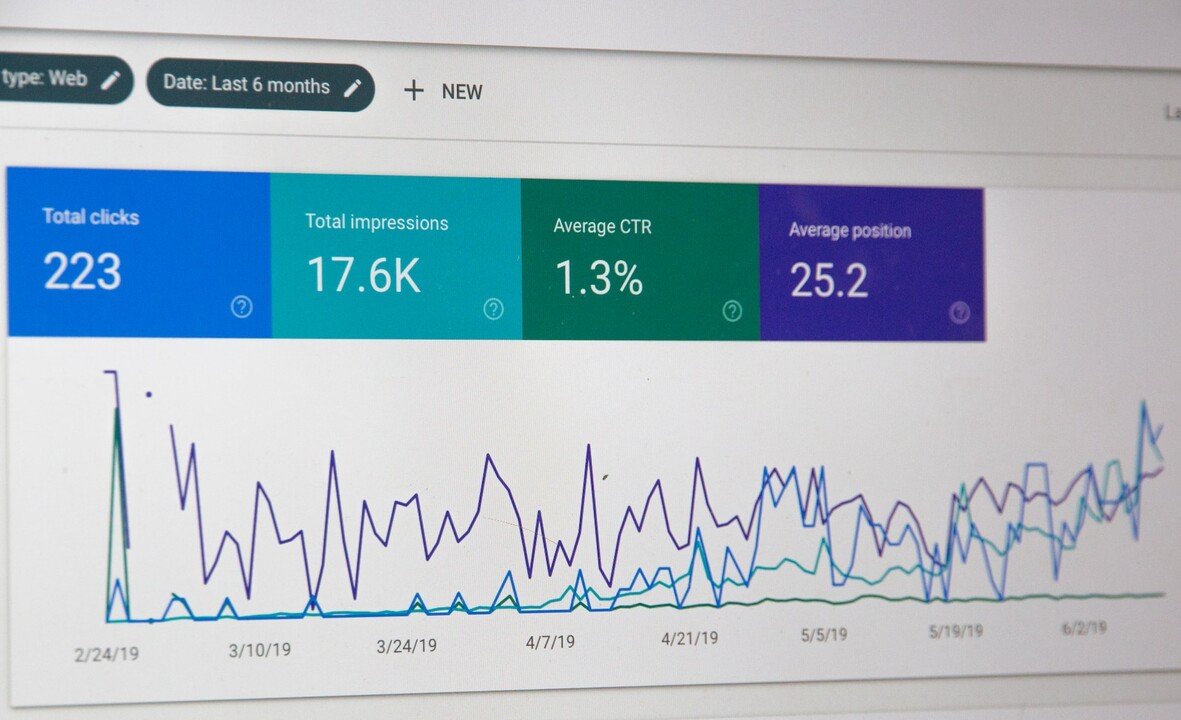
Earnings Overview: Displays daily, monthly, and yearly revenue summaries.
-
Performance Metrics: Includes key data such as impressions, clicks, and RPM.
-
Payment Status: Shows recent payments and upcoming payout dates.
-
Site Management: Lists websites and ad units associated with your account.
-
Alerts and Notifications: Policy violations, verification reminders, or other important updates.
Spend some time familiarizing with the app layout for quick future navigation.
Step 5: Customize Notifications and Preferences
-
Navigate to Settings to control push notifications.
-
Activate alerts for payment milestones and policy updates to avoid account issues.
-
Choose a preferred display currency if available.
Personalizing these features enhances your app experience and ensures you never miss critical information.
Step 6: Verify Your Account (If Pending)
If you have pending verification steps, the app guides you through:
-
Entering your PIN sent via mail.
-
Uploading identity documents if required.
-
Completing tax and payment information.
Following these steps promptly avoids payment delays and account interruptions.
Step 7: Monitor and Optimize Ad Performance
-
Use the “Performance” tab to analyze trends.
-
Identify days with higher impressions and clicks.
-
Use insights to optimize content schedule, ad placements, and targeting.
-
Switch between different sites/accounts to compare performance.
For deep analysis, complement app data with Google AdSense web dashboard reports.
Step 8: Manage Payments and Payout Settings
-
Verify payment thresholds and preferred methods.
-
Check upcoming payment schedules.
-
Ensure bank details are updated and accurate.
Benefits for Beginners Using the Google AdSense App
-
User-Friendly: No coding or complex setup needed.
-
Immediate Insights: Keep track of your monetization progress easily.
-
Mobility: Manage your earnings anywhere.
-
Multi-Channel Support: Work simultaneously on multiple properties.
-
Policy Compliance: Receive timely warnings to maintain account health.
Troubleshooting Common Installation and Setup Issues
-
App Not Available in Region: Use VPN or check for updates.
-
Login Problems: Ensure your Google credentials are correct; reset password if needed.
-
Notifications Not Working: Check device settings to allow push notifications.
-
Slow Sync: Ensure stable internet connection.
Best Practices to Maximize Your AdSense App Experience
-
Regularly check the app to keep abreast of changes.
-
Use both app and desktop dashboard for comprehensive account insights.
-
Update the app frequently to access new features and security patches.
-
Utilize Google’s support and forums if you encounter anomalies.
Official Help and Support
For official guidance and updates on the Google AdSense app, visit:
Read More: How to Use Google Ads Calculator for Better Campaign ROI
Conclusion
Setting up the Google AdSense app correctly in 2025 is a crucial step for beginners to monitor earnings, respond to alerts swiftly, and manage multiple accounts conveniently. With its intuitive interface and powerful real-time reporting, the app empowers publishers to stay connected to their monetization efforts from anywhere.
By following this step-by-step installation and setup guide, new users can confidently navigate the app’s features, avoid common pitfalls, and optimize their Google AdSense experience for sustainable revenue growth.