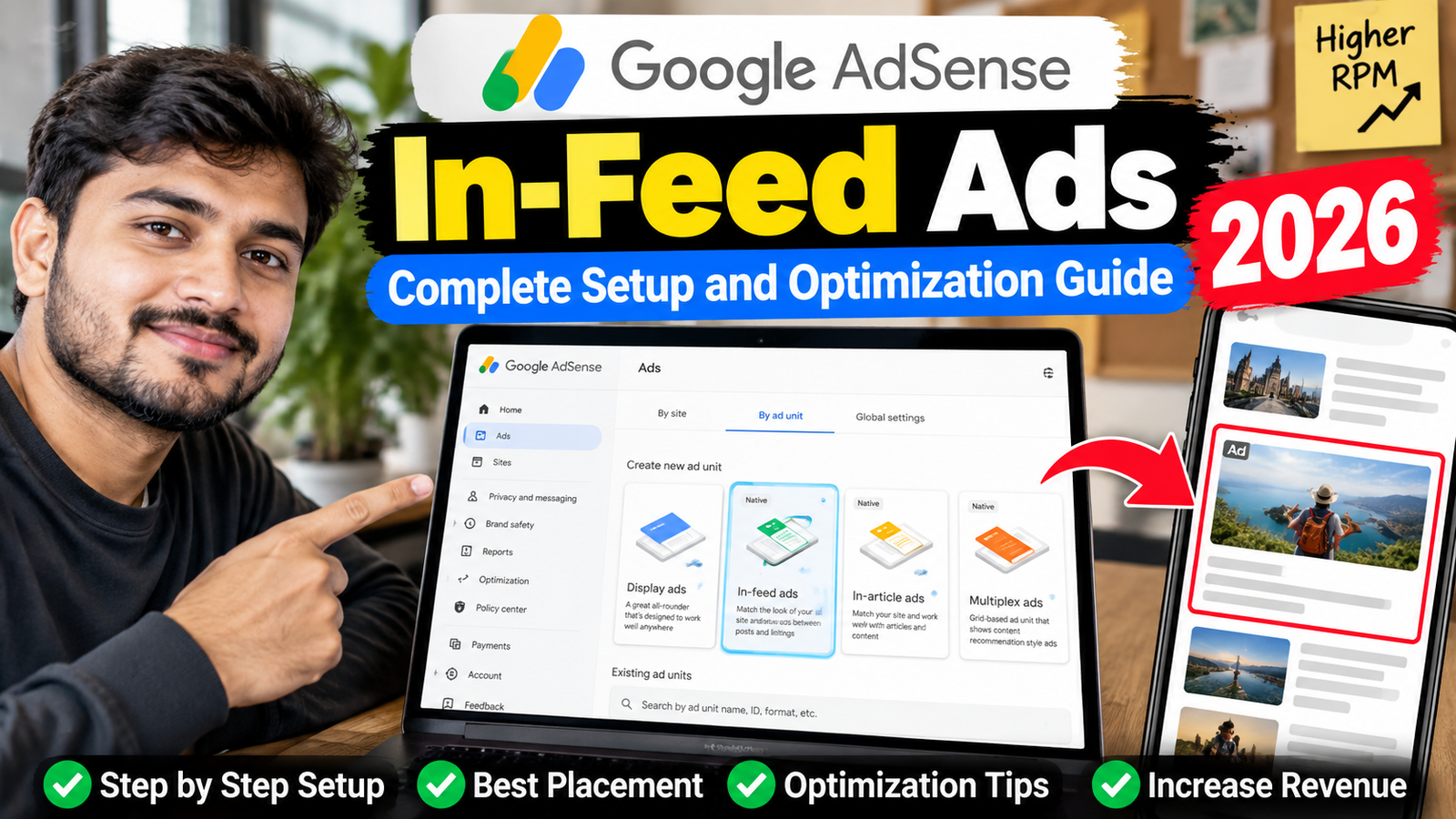
AdSense In-Feed ads are native advertisements designed to appear naturally inside a repeating list of articles, products, services or other content blocks. They can be used on homepages, category pages, product-listing pages and other sections where visitors scroll through a structured content feed.
Unlike standard display ads, an In-Feed ad can be customized to match the general image size, font, colours, borders and spacing used by the surrounding feed. The goal is to create a non-intrusive advertising placement without misleading visitors into believing that the advertisement is regular publisher content. 1
Google AdSense currently provides two creation methods: Google can scan your page and suggest a design, or you can manually create and customize the unit. Once generated, the ad-unit code must be placed inside the HTML structure of the feed. 2
This guide explains how to create, style, place and troubleshoot In-Feed ad units while protecting usability and policy compliance.
What Is a Feed in Google AdSense?
For In-Feed advertising, a feed is a scrollable stream of repeating content blocks. It does not mean an RSS or web-syndication feed.
Examples include:
- A homepage displaying recent articles
- A news website’s latest-story list
- A product-results page
- A list of services
- A horizontal article carousel
- A text-only list of headlines
- A WordPress category archive
- A mobile list created from a desktop grid
The individual feed items normally use a similar layout. For example, each item may contain a featured image, article title, short description and publication date. 3
An In-Feed advertisement should appear as another clearly identified block inside this repeating structure. It should not be placed randomly outside the feed or between unrelated page sections.
AdSense In-Feed Ads vs In-Article Ads
In-Feed and In-Article ads are both native formats, but they have different purposes.
| Feature | In-Feed ads | In-Article ads |
|---|---|---|
| Primary location | Inside a list of content items | Between article paragraphs |
| Suitable pages | Homepage, category or product list | Individual long-form article |
| Placement | Between repeating feed blocks | Between editorial sections |
| Design reference | Surrounding cards or listings | Article typography and width |
| Creation method | Page scan or manual styling | Manual native-unit setup |
| Separate mobile unit | Recommended when layouts differ | Usually one responsive unit |
| Main purpose | Monetize browsing and discovery pages | Monetize reading sessions |
Use an In-Feed ad when the user is browsing several content choices. Use an In-Article ad when the user is reading one detailed article. Both formats can operate alongside display ads and other eligible AdSense units. 4
AdSense In-Feed Ads vs Auto Ads
In-Feed ads are currently created as manual ad units under:
Ads → By ad unit → In-feed adsThey are not listed as a separate Auto Ads format. Current Auto Ads in-page formats include banner and Multiplex ads, while In-Feed units are created and inserted into the feed by the publisher. 5
This provides greater control over:
- Which feeds display the advertisement
- The position within each feed
- Image alignment
- Colours and typography
- Spacing between content and ads
- Mobile and desktop versions
- Reporting for each placement
However, it also means that you or your developer must place the generated code inside the correct feed template.
How to Create AdSense In-Feed Ads
Follow these steps:
- Sign in to Google AdSense.
- Open Ads.
- Select By ad unit.
- Click In-feed ads.
- Choose whether Google should scan your feed or whether you want to create the style manually.
- Customize the design.
- Give the unit a descriptive name.
- Click Save and get code.
- Copy the complete ad-unit code.
- Insert it inside the HTML of your feed.
- Clear website and CDN caches.
- Test the feed on desktop and mobile.
Google says new In-Feed units usually begin displaying within a few minutes, although it can occasionally take up to one hour. 2
Recommended Ad-Unit Names
Use names that identify the device, feed and position:
Native-InFeed-Homepage-Mobile
Native-InFeed-Homepage-Desktop
Native-InFeed-Category-Position-4
Native-InFeed-Products-Position-6
Native-InFeed-Latest-Posts
Avoid unclear names such as:
New Ad
Feed Ad 1
Test Unit
Homepage Ad
Google recommends using a prefix such as “Native” to make the units easier to locate in reports. 2
Method 1: Let Google Suggest a Style
This is the quickest creation method.
Follow these steps:
- Enter the URL containing your feed.
- Select the mobile or desktop version.
- Click Scan page.
- Review the highlighted feeds detected by Google.
- Select a representative feed item.
- Allow AdSense to create a suggested ad style.
- Customize the suggested design if necessary.
- Save the unit and copy its code.
Google initially creates the style using a detected content item, but you can select another feed item if the first one does not accurately represent the layout. 2
When to Use Page Scanning
Use Google’s scan option when:
- Your feed contains images and text.
- Feed cards use a consistent layout.
- You want a quick starting design.
- You are unfamiliar with native-ad styling.
- The page is publicly accessible to Google.
If the feed is text-only, Google recommends using the manual creation method. 2
Method 2: Create the Style Manually
Manual creation provides greater control over the unit.
You can select a layout and configure settings for:
- Global font
- Background
- Borders
- Padding
- Image alignment
- Image aspect ratio
- Headline length
- Description
- Display URL
- Button design
- Text wrapping
Google allows image aspect ratios of 1.91:1 or 1:1. Select the ratio closest to the images used in your feed. You can also align the image to the left or right and control its width in pixels or as a percentage. 1
Manual creation is useful when:
- The page scanner cannot detect the correct feed.
- Your feed is text-only.
- The mobile and desktop layouts are substantially different.
- Your theme uses a custom card structure.
- You need strict control over padding and borders.
- You want to create separate variations for testing.
How to Customize AdSense In-Feed Ads
Match the Feed Structure
Your advertisement should use the same general content elements as the surrounding feed.
For example, if each feed item contains only an image and title, consider disabling the advertisement description. If feed cards contain a long headline, short description and action button, configure the In-Feed unit with similar elements. 1
The unit should fit the layout without becoming indistinguishable from publisher content.
Match Image Alignment and Size
If the feed’s article cards use left-aligned square images, configure the advertisement similarly. If the feed uses wider landscape thumbnails, the 1.91:1 image option may be more suitable.
Review:
- Image alignment
- Aspect ratio
- Width
- Padding
- Text wrapping
- Space between image and headline
The live advertisement may not always look exactly like the preview because the final creative and available container size can vary. 2
Match Fonts and Colours Carefully
You can select a Google font and configure the headline, description, URL and button colours.
Suitable customization can include:
- The same general font family as the feed
- Similar headline size
- Comparable card background
- Consistent borders
- Matching internal padding
- Sufficient contrast
Do not hide the advertising label or make the unit look exactly like an organic content item. Visitors must still understand that it is an advertisement.
Allow Selected Display Ads
The Allow selected display ads setting lets eligible display creatives appear inside the In-Feed unit. Enabling it can create access to additional advertising demand, although no revenue increase is guaranteed. 1
Consider enabling it when:
- The unit frequently remains unfilled.
- You want additional advertiser competition.
- Revenue is more important than strict native consistency.
- Display creatives fit comfortably inside the feed.
Consider disabling it when:
- Visual consistency is essential.
- Display creatives look unsuitable in the card layout.
- The feed is narrow or highly customized.
Test both configurations using sufficient traffic.
Best Placement for AdSense In-Feed Ads
Google says the code can be inserted between content blocks or where the feed begins or ends. The ad code must remain inside the feed’s HTML structure. Placing it outside the feed can result in weak performance and may create policy problems. 6
A simple feed may look like this:
Content item 1
Content item 2
Content item 3
In-Feed advertisement
Content item 4
Content item 5
Content item 6
A practical starting point is to insert the first ad after three to five organic content blocks. This is a testing recommendation rather than a universal Google requirement.
Avoid showing an advertisement as the first item unless the design has been carefully tested. Visitors should first understand the page’s purpose and see genuine publisher content.
How Many In-Feed Ads Can You Use?
Google does not publish a fixed maximum number of In-Feed units per page. However, advertisements and other paid promotional material must not exceed publisher-created content. 7
If multiple In-Feed ads appear in one feed, Google recommends keeping at least three content blocks between each advertisement. You can reuse the same unit code or create separate units for different positions. 7
A practical starting configuration could be:
| Number of feed items | Suggested starting setup |
|---|---|
| Fewer than 6 items | Zero or one ad |
| 6–12 items | One or two ads |
| 12–20 items | Two or three ads |
| Infinite-scroll feed | Insert carefully with at least three organic blocks between ads |
These are practical recommendations, not official numerical limits. Review total advertising density across banner, anchor, sidebar and Multiplex formats as well.
Mobile vs Desktop In-Feed Ads
In-Feed ads are responsive, but Google recommends creating separate units when the feed design is significantly different on mobile and desktop. 3
For example:
Desktop Feed
Landscape image | Headline | Description | DateMobile Feed
Square image
Headline
Date
One style may not fit both layouts correctly. Separate units allow you to customize:
- Image alignment
- Image ratio
- Font size
- Description visibility
- Padding
- Border style
- Text wrapping
Test the feed at several browser widths before publishing it.
Responsive Size Requirements
An In-Feed ad’s width equals the width of its feed container. Google requires the feed to be at least 250 pixels wide. AdSense automatically adjusts the unit’s height to fit its advertising elements. 3
The parent container should have:
- A valid measurable width
- A variable height
- No restrictive clipping
- Sufficient space for the advertising label
- No
display:nonestate when the unit loads
A fixed-height container can distort the unit, while a container without a measurable width can prevent the advertisement from appearing. 6
How to Add In-Feed Ads to WordPress
WordPress feeds are usually created by a theme loop that displays posts one after another.
Common implementation options include:
Theme Advertising Position
Some themes include ad positions inside:
- Homepage post grids
- Category archives
- Search-result lists
- Product listings
- Latest-post sections
Paste the complete code into the feed-specific advertising field.
Advertising Plugin
An advertising-management plugin may be able to insert a unit after every selected number of posts.
For example:
Insert after item 4
Repeat after every 5 additional items
Google does not endorse third-party plugins, so verify that the plugin leaves the AdSense code unchanged. 8
Custom Theme Loop
A developer can insert the ad code conditionally inside the loop that generates the feed.
The logic may follow this general structure:
Display feed item
Increase item counter
If counter reaches selected position:
    Display In-Feed ad
Continue feed
Use a child theme or custom plugin rather than directly editing a theme that may be overwritten during an update.
How to Track In-Feed Ad Performance
Open:
AdSense → Reports → Ad unitsSelect the In-Feed units and apply the filter. This report lets you compare individual feed placements. 2
You can also use the Ad formats report to compare native In-Feed advertising with display, In-Article and other formats. The report can distinguish requested format and placement method. 9
Monitor:
- Estimated earnings
- Impressions
- Ad requests
- Coverage
- Ad RPM
- Page RPM
- Ad CTR
- Active View
- Device
- Country
- Individual ad unit
Use a meaningful testing period. One or two days may not provide enough information, particularly on a low-traffic category page.
Why Are In-Feed Ads Not Showing?
The Unit Is New
New ad units may take several minutes—and occasionally up to one hour—to begin appearing. 2
The Feed Is Too Narrow
The minimum supported feed width is 250 pixels. 3
The Parent Has No Measurable Width
A floating, hidden or incorrectly styled parent container can report an available width of zero.
The Container Has a Fixed Height
In-Feed ads need a variable-height container because AdSense automatically calculates the required height. 6
Code Was Added Outside the Feed
Move the code inside the repeating feed structure rather than placing it in an unrelated sidebar or footer. 6
WordPress Modified the Code
Check the live page source and compare it with the code copied from AdSense. Visual editors and optimization plugins can occasionally change JavaScript or HTML formatting.
The Page Has a Policy Issue
Review the Policy Center for disabled or restricted ad serving.
No Eligible Creative Is Available
A valid advertising request can remain unfilled when no suitable advertisement is available. Consider testing the selected-display-ads option.
An Ad Blocker Is Active
Test using a private browser profile without extensions.
In-Feed Ads Policy and UX Checklist
Before publishing, confirm that:
- The unit appears inside the feed.
- The feed is at least 250 pixels wide.
- The parent container has a variable height.
- The advertising label is visible.
- The unit is not mistaken for an organic article.
- At least three content blocks separate multiple ads.
- Advertising does not exceed publisher content.
- Mobile and desktop versions have been tested.
- Ads are not placed beside misleading buttons.
- The page does not encourage advertisement clicks.
- The ad code remains unchanged.
- The Policy Center has been reviewed.
Google prohibits publishers from asking visitors to click ads or using misleading labels. Acceptable labels include “Advertisements” and “Sponsored Links,” while labels such as “Favorite Sites” or “Today’s Top Offers” are not permitted. 10
30-Day In-Feed Ads Testing Plan
Days 1–5: Establish a Baseline
- Record category and homepage revenue.
- Record Page RPM and Ad RPM.
- Review mobile and desktop feed layouts.
- Count current advertising placements.
- Check engagement with organic feed items.
Days 6–10: Create the Unit
- Create separate mobile and desktop units if necessary.
- Use descriptive names.
- Start with one advertisement after three to five items.
- Test several feed templates.
- Clear WordPress and CDN caches.
Days 11–25: Collect Data
- Monitor impressions and coverage.
- Compare mobile and desktop performance.
- Check feed-item engagement.
- Review page-loading behaviour.
- Avoid major theme changes.
- Monitor the Policy Center.
Days 26–30: Evaluate
- Compare revenue with the baseline.
- Review Ad RPM and Page RPM.
- Check whether organic article clicks declined.
- Test selected display ads if coverage is low.
- Add another unit only when enough organic content remains.
- Remove or redesign the placement if it confuses users.
A low-traffic feed may require a longer testing period.
Frequently Asked Questions
What are AdSense In-Feed ads?
They are customizable native advertisements designed to appear inside repeating lists of articles, products or services. 3
Does “feed” mean an RSS feed?
No. It means a scrollable stream of repeating content blocks, not an RSS or syndication feed. 3
Can Google automatically design my In-Feed ad?
Yes. AdSense can scan a public feed page and suggest a style based on a selected feed item. You can also create the design manually. 2
Are In-Feed ads responsive?
Yes. Their width follows the feed container, and AdSense automatically adjusts their height. 7
What is the minimum width?
The feed container must be at least 250 pixels wide. 3
How much space should be kept between multiple ads?
Google recommends at least three organic content blocks between In-Feed advertisements. 7
Should I create separate mobile and desktop units?
Create separate units when your mobile and desktop feed structures are significantly different. 7
Are In-Feed ads available in Auto Ads?
Current AdSense documentation lists In-Feed as an ad unit created under By ad unit, not as a separate Auto Ads format. 5
Can display ads appear inside the unit?
Yes, when Allow selected display ads is enabled in the unit settings. 1
How can I track In-Feed earnings?
Open the Ad units report, select the relevant In-Feed units and apply the filter. 2
Can I use the same code more than once?
Yes. Google says you can reuse the same unit code or create multiple units, while keeping at least three content blocks between advertisements. 7
Conclusion
AdSense In-Feed ads can monetize homepages, category archives and product listings without relying only on standard banner placements.
Begin with one responsive unit inside the feed, match its image ratio and spacing to the surrounding cards, and keep the advertising disclosure clearly visible. Create separate mobile and desktop units when the feed layouts differ significantly.