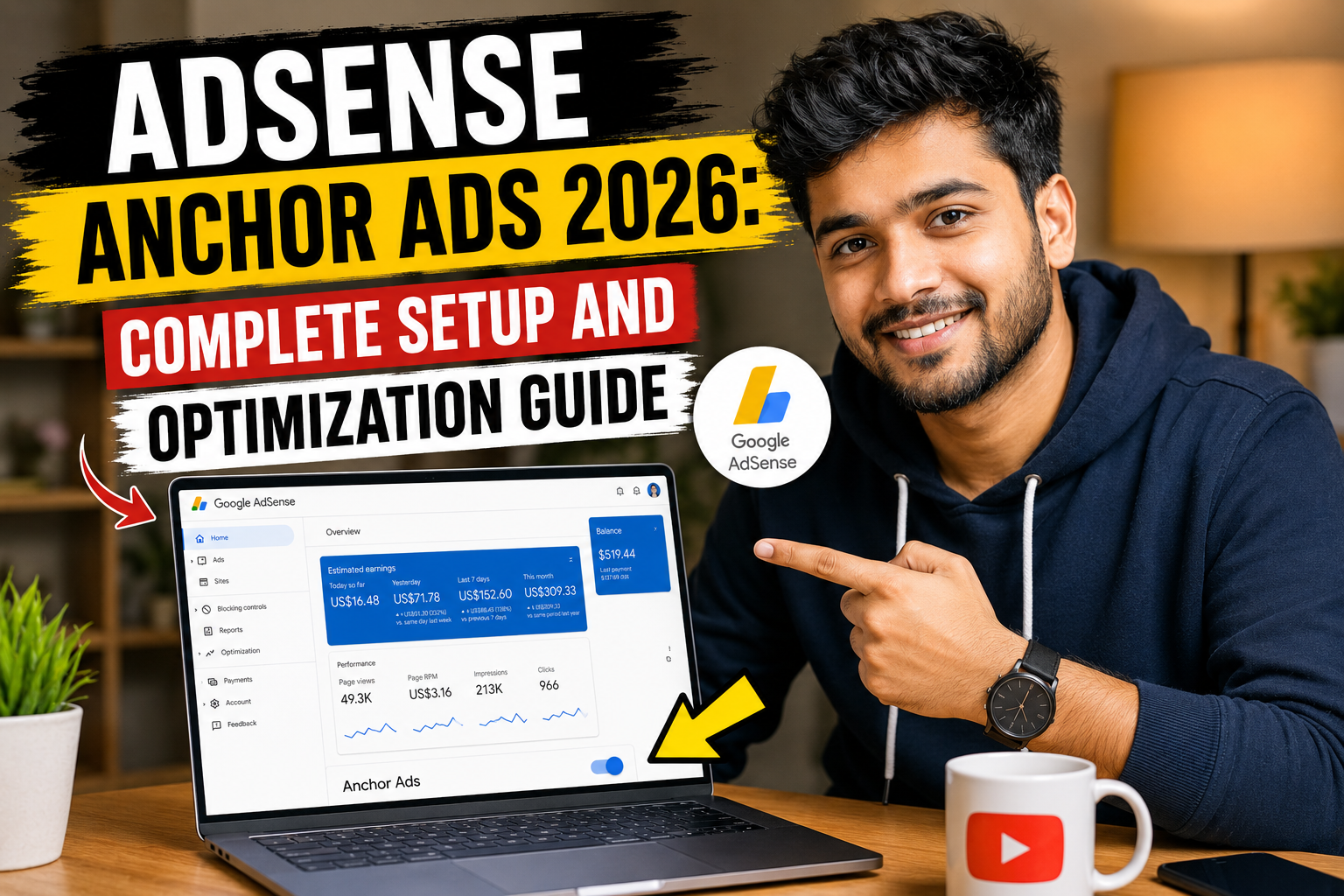
AdSense anchor ads are dismissible overlay advertisements that remain attached to the top or bottom edge of a visitor’s screen. Unlike regular display units placed between article paragraphs, anchor ads remain visible while a user interacts with the page.
Google AdSense supports anchor ads on mobile and desktop devices. Publishers can control their position, disable them on wider screens and decide whether to use dynamic anchors, which can change their size and appearance based on the available advertising opportunity. 2
Google expanded dynamic anchor functionality to desktop on May 21, 2026. Publishers who had both collapsible anchors and desktop anchors enabled were given until June 21, 2026 to review their settings before the updated desktop experience became active automatically. 3
This guide explains how to enable AdSense anchor ads, select a position, control dynamic anchors, modify the AdSense code and measure performance.
What Are AdSense Anchor Ads?
Anchor ads are part of the Overlay formats available through AdSense Auto Ads. They stick to the edge of the user’s screen without becoming a normal part of the article layout.
Visitors can dismiss an anchor ad when they no longer want it displayed. Anchor ads can serve on mobile devices and desktop screens when the relevant settings are enabled. 4
A typical anchor-ad experience works like this:
- A visitor opens an eligible page.
- The visitor begins interacting with or scrolling through the page.
- AdSense identifies an appropriate advertising opportunity.
- An anchor ad appears at the top or bottom of the screen.
- The ad remains visible while the visitor continues reading.
- The visitor can collapse or dismiss the advertisement.
Anchor ads do not necessarily appear during every page view. Google states that Auto Ads are shown when its systems determine that the advertisements are likely to perform well while providing a suitable user experience. 5
AdSense Anchor Ads vs Dynamic Anchor Ads
A standard anchor ad is a persistent but dismissible advertisement attached to the top or bottom of a screen.
A dynamic anchor is an enhancement to the standard anchor format. Dynamic anchors automatically adapt their size and presentation. Depending on the opportunity, they may:
- Expand beyond the size of a standard anchor
- Collapse into a smaller anchor
- Remain in a corner in a more compact format
- Display different creative presentations
- Appear at the top or bottom of the screen
Dynamic anchors are currently available on mobile and desktop. Google also applies frequency controls to dynamic anchors on mobile to help maintain a reasonable user experience. 4
Important 2026 Terminology Change
The setting previously known as Allow collapsible anchor ads was renamed Allow dynamic anchors on May 21, 2026.
Google described the new setting as a broader control intended to cover collapsible anchors and additional adaptive anchor improvements introduced over time. 3
If you see older tutorials referring to collapsible anchors, check your current AdSense dashboard for the updated Allow dynamic anchors setting.
Anchor Ads vs Ad Intent Anchors
These two formats have similar names but work differently.
| Feature | Anchor ads | Ad intent anchors |
|---|---|---|
| Format group | Overlay formats | Intent-driven formats |
| Position | Top or bottom edge of the screen | Near the bottom of the page |
| User interaction | Ad can appear during page interaction | User selects a relevant term |
| Result | Advertisement remains attached to screen | Dismissible dialog opens |
| Priority | Higher | Appears when a regular anchor is unavailable |
| Main control | Anchor Ads setting | Ad Intents setting |
Ad intent anchors show relevant terms as users scroll through a page. Selecting an ad intent anchor opens a dialog containing advertising and related content.
Publishers can enable regular anchor ads and ad intent anchors simultaneously. When both are eligible, regular anchor ads receive priority, and an ad intent anchor is shown only when an anchor ad is unavailable. 6
How to Enable AdSense Anchor Ads
Follow these steps to enable the format:
- Sign in to your Google AdSense account.
- Click Ads in the main navigation.
- Find your website in the list.
- Click the Edit icon next to the site.
- Wait for the ad-settings preview to load.
- Turn on Auto Ads.
- Open Overlay formats.
- Turn on Anchor ads.
- Open Advanced settings.
- Configure dynamic anchors.
- Choose whether to allow desktop anchors.
- Select an anchor-ad position.
- Click Apply to site.
- Choose Apply now or Run experiment first.
- Save the configuration.
The primary AdSense code must be installed across the pages where you want Auto Ads to operate. Google says new Auto Ads settings can take up to an hour to appear. 7
AdSense Anchor Ad Position Settings
AdSense currently offers three anchor-position settings:
- Top or bottom
- Top only
- Bottom only
These controls were introduced to give publishers more flexibility over where overlay advertisements appear. 8
1. Top or Bottom
This option allows AdSense to determine whether the anchor should appear at the top or bottom of the visitor’s screen.
Google normally displays an anchor at the top unless it determines that the position could negatively affect the user experience. In that situation, it may display the anchor at the bottom. 4
Suitable for:
- Publishers who want placement automation
- Websites without complicated sticky headers
- Blogs with a simple mobile layout
- Publishers running an Auto Ads experiment
2. Top Only
This option restricts eligible anchor ads to the top edge of the screen.
When displayed at the top, Google says the anchor appears only after the visitor has scrolled far enough. This behaviour is intended to prevent the advertisement from covering the website’s branding or primary navigation immediately after the page loads. 4
Suitable for:
- Websites with clear spacing below the mobile header
- Article layouts where bottom controls are important
- Sites using sticky sharing or navigation tools at the bottom
3. Bottom Only
This option restricts anchors to the bottom of the visitor’s screen.
Suitable for:
- Websites with a sticky top navigation bar
- Themes where the top area contains important branding
- Sites where top anchors create visual conflicts
- Publishers who prefer a predictable lower-screen placement
Google states that its experiments have found top anchors can perform better than bottom-only anchors. However, your final decision should consider usability and your own experiment data rather than revenue potential alone. 9
Recommended Anchor Ads Starting Configuration
The following is a cautious starting configuration for a content-based website. It is not a guaranteed revenue formula.
| Setting | Suggested starting point |
|---|---|
| Anchor ads | Enabled |
| Mobile anchors | Enabled |
| Desktop anchors | Test through an experiment |
| Dynamic anchors | Enabled and monitored |
| Position | Top or bottom |
| Important utility pages | Exclude from Auto Ads |
| Sticky header conflicts | Test on multiple devices |
| Evaluation period | At least two to four weeks |
| Major setting changes | One at a time |
If the site has a large or complex sticky header, begin with Bottom only. If the layout is simple, test Top or bottom before restricting AdSense to one position.
Should You Enable Dynamic Anchor Ads?
Dynamic anchors may create larger and more flexible advertising opportunities than regular anchors. Google says the format can provide more room for advertiser messages and may support improved visibility and click-through performance. 4
Consider enabling dynamic anchors when:
- Your website receives substantial mobile traffic.
- Your articles are long enough to support sustained reading.
- Visitors can clearly collapse or dismiss the format.
- The ad does not cover navigation or interactive elements.
- You are prepared to compare engagement and revenue.
Consider disabling dynamic anchors when:
- Expanded anchors interrupt important website tasks.
- Visitors report that the format is too large.
- The page has several other floating elements.
- The layout includes a cookie banner or sticky navigation conflict.
- User engagement declines after activation.
To disable them:
- Open your website’s Auto Ads settings.
- Click Overlay formats.
- Expand Advanced settings.
- Uncheck Allow dynamic anchors.
- Apply the change to your website.
Disabling dynamic anchors does not require disabling all regular anchor ads. 2
Should You Enable Desktop Anchor Ads?
Anchor ads can appear on screens wider than 1,000 pixels when the desktop option is enabled.
Google expanded collapsible or dynamic anchor functionality to desktop on May 21, 2026 to support larger-screen advertising opportunities, including responsive display and outstream-video demand. 3
Desktop anchors may be useful when:
- Desktop represents a meaningful part of your traffic.
- The page has sufficient visible content.
- The format does not block navigation or cookie notices.
- The site does not already use several intrusive overlays.
- You can measure desktop results separately.
Consider disabling desktop anchors when:
- They interfere with live chat tools.
- They cover table navigation or forms.
- The website has limited vertical space.
- Desktop visitors perform important business tasks.
- Engagement declines after activation.
To disable desktop anchors:
- Open Ads in AdSense.
- Click Edit next to your website.
- Open Overlay formats.
- Expand Advanced settings.
- Uncheck Allow anchor ads on screens wider than 1000px, like desktop.
- Apply the settings.
How to Force AdSense Anchor Ads to the Bottom
The AdSense dashboard now provides a Bottom-only position setting. However, Google also documents an approved code modification for publishers requiring bottom-only anchors.
Add the following data-overlays parameter to your main AdSense script:
<script async
  src="https://pagead2.googlesyndication.com/pagead/js/adsbygoogle.js?client=ca-pub-1234567890123456"
  data-overlays="bottom"
  crossorigin="anonymous">
</script>
Replace the example publisher number with your real AdSense publisher ID.
This modification prevents anchors from appearing at the top and restricts them to the bottom of the page. Google identifies this as an acceptable modification of the AdSense code. 9
Important Warning About Code Overrides
Adding data-overlays="bottom" can:
- Override the position selected in the Auto Ads dashboard
- Enable anchor ads even if they are disabled in the dashboard
Therefore, use either the dashboard setting or the code override intentionally. Do not forget that an old code modification may continue affecting the format after you change your account settings. 9
How to Show Only Regular Bottom Anchors
If you want bottom anchors without the collapsible presentation, Google documents this approved parameter:
<script async
  src="https://pagead2.googlesyndication.com/pagead/js/adsbygoogle.js?client=ca-pub-1234567890123456"
  data-overlays="collapsed-bottom"
  crossorigin="anonymous">
</script>
This code shows regular, non-collapsible anchors at the bottom. Google warns that opting out of the collapsible experience may reduce potential performance compared with dynamic or collapsible anchors. 9
Before modifying AdSense code:
- Back up your existing implementation.
- Use your real publisher ID.
- Avoid changing undocumented parts of the code.
- Clear your site and CDN caches.
- Test mobile and desktop pages.
- Confirm that the code is not added more than once.
Excluded Areas Do Not Disable Anchor Ads
A common mistake is trying to suppress an anchor by creating an excluded area at the top or bottom of a page.
Excluded areas apply only to in-page Auto Ads. They do not stop overlay formats such as anchor ads from appearing. 10
If you do not want anchor ads on a particular page, use an Auto Ads page exclusion instead.
Pages that may be suitable for exclusion include:
- Privacy Policy
- Terms and Conditions
- Contact forms
- Login pages
- Account-management pages
- Checkout pages
- Short thank-you pages
- Pages with essential action buttons
- Pages containing little original content
Remember that page exclusions stop Auto Ads generally on the selected URL, not only anchor ads. 2
How to Preview Anchor Ads
The AdSense ad-settings preview lets you:
- View possible Auto Ads placements
- Switch between mobile and desktop displays
- See how Auto Ads interact with existing units
- Navigate through different pages
- Detect missing AdSense code
- Access an active Auto Ads experiment
Google cautions that the exact size and position shown on the live website may differ from the preview. 11
After applying the settings, also test the live website using:
- A small Android phone
- An iPhone-sized display
- A tablet
- A laptop
- A large desktop monitor
- Logged-in and logged-out sessions
- Different browsers
Pay particular attention to sticky menus, cookie notices, accessibility controls and chat widgets.
How to Run an Anchor Ads Experiment
An experiment can compare:
- Anchor ads on versus off
- Dynamic anchors on versus off
- Mobile-only anchors versus mobile and desktop
- Top or bottom placement versus bottom only
To create an experiment:
- Sign in to AdSense.
- Open Optimization.
- Select Experiments.
- Create an Auto Ads experiment.
- Select your website.
- Configure the anchor-ad variation.
- Name the experiment.
- Decide whether Google should automatically select the winner.
- Start the experiment.
You can run only one active Auto Ads experiment per website at a time. No additional AdSense code modification is required. 12
Google recommends waiting until the experiment displays Result ready before choosing a winner. Auto Ads experiment metrics measure the impact across the complete website, including existing manual ad units—not only the tested Auto Ads format. 12
How to Track Dynamic Anchor Performance
To create a dynamic anchor report:
- Open Reports in AdSense.
- Create a custom report.
- Add an Ad format filter.
- Select Anchor.
- Apply the filter.
- Add a Served creative filter.
- Select Dynamic anchors.
- Apply the filter.
- Choose the required date range.
Google documents these filters as the method for isolating dynamic anchor performance. 4
Monitor:
- Estimated earnings
- Anchor impressions
- Ad RPM
- Click-through rate
- Mobile and desktop performance
- Country-level performance
- Performance by date
Also compare website-experience indicators:
- Engagement time
- Pages per session
- Returning visitors
- Exit rate
- Form completions
- Application-button clicks
- Mobile navigation problems
- Visitor complaints
Do not judge the format only by CTR. An unusual increase may indicate that the advertisement is too close to a navigation or touch element.
Anchor Ads Policy and User-Experience Checklist
Before applying anchor ads to all visitors, confirm that:
- The advertisement remains dismissible.
- The site’s main navigation remains usable.
- Sticky headers do not overlap the ad.
- Cookie notices do not cover the close control.
- Mobile forms remain accessible.
- Application and download buttons remain visible.
- The website does not encourage ad interaction.
- Ads cannot be mistaken for navigation.
- Dynamic anchors have been tested on mobile.
- Desktop anchors have been tested separately.
- Pages with important tasks have been excluded where necessary.
- Revenue is evaluated with engagement data.
Google prohibits implementations where advertisements could be confused with menu items, navigation controls or download links. Ads should not be positioned too close to elements requiring significant mouse or touch interaction. 13
Common AdSense Anchor Ads Problems
Anchor Ads Are Not Appearing
Possible reasons include:
- Auto Ads are disabled.
- Anchor ads are disabled under Overlay formats.
- The AdSense code is missing.
- The page has been excluded.
- Desktop anchors are disabled on a wider screen.
- The settings have not finished propagating.
- AdSense has not identified a suitable advertising opportunity.
Google says Auto Ads settings can take up to one hour to appear after being applied. 7
Anchor Ads Appear on Desktop Unexpectedly
Check whether both of these options are enabled:
- Allow dynamic anchors
- Allow anchor ads on screens wider than 1000px
The desktop dynamic-anchor experience was activated automatically after the 2026 review period for publishers who had both relevant settings enabled. 3
The Anchor Appears at the Bottom Despite Dashboard Changes
Review your main AdSense code for:
data-overlays="bottom"or:
data-overlays="collapsed-bottom"These parameters override dashboard position settings and can enable anchor ads even when the format has been disabled through Auto Ads controls. 9
The Anchor Is Too Large
The page may be displaying a dynamic anchor. Dynamic anchors can expand beyond standard anchor size or change into a compact corner presentation.
If the experience is unsuitable, uncheck Allow dynamic anchors and test regular anchors. 4
The Anchor Covers a Sticky Element
Review:
- Sticky navigation
- Cookie-consent banners
- Chat widgets
- Floating social icons
- Accessibility buttons
- Back-to-top buttons
- Mobile browser behaviour
If the conflict cannot be corrected through your theme, test Bottom only, disable desktop anchors or exclude the affected page from Auto Ads.
An Ad Intent Anchor Appears Instead
If regular anchor ads and ad intent anchors are both enabled, regular anchors have priority. An ad intent anchor can appear when a standard anchor is unavailable. 6
Recommended 30-Day Testing Plan
Days 1–5: Record a Baseline
- Record current revenue and Page RPM.
- Review mobile and desktop traffic.
- Check existing overlay formats.
- Record engagement and pages per session.
- Test important page templates.
- Check the Policy Center.
Days 6–10: Configure Anchor Ads
- Enable anchor ads.
- Start with Top or bottom.
- Enable dynamic anchors.
- Decide whether to test desktop anchors.
- Exclude unsuitable utility pages.
- Check for old code overrides.
Days 11–25: Collect Data
- Avoid major layout changes.
- Monitor anchor impressions and revenue.
- Compare mobile and desktop results.
- Review user complaints.
- Test application and navigation buttons.
- Investigate unusual CTR changes.
Days 26–30: Evaluate
- Compare total earnings against the baseline.
- Review engagement and returning visitors.
- Check mobile usability.
- Compare dynamic anchors with regular anchors.
- Disable desktop anchors if they create conflicts.
- Retain the format only when it provides measurable value.
Frequently Asked Questions
What are AdSense anchor ads?
They are dismissible Auto Ads that remain attached to the top or bottom edge of a visitor’s screen while the page is being viewed.
Are AdSense anchor ads available on desktop?
Yes. Anchor ads can appear on screens wider than 1,000 pixels when the desktop setting is enabled. Dynamic anchors were expanded to desktop on May 21, 2026. 3
What are dynamic anchor ads?
Dynamic anchors adapt their size and appearance. They may expand, collapse or appear in a compact corner format. They support mobile, desktop, top and bottom placements. 4
What is the best anchor-ad position?
There is no universal best position. Top or bottom provides more automation, while Bottom only may be suitable for sites with large sticky headers. Use an experiment to compare results.
Can I force anchor ads to appear at the bottom?
Yes. Select Bottom only in Auto Ads settings or use Google’s approved data-overlays="bottom" code parameter. 9
Can I turn off dynamic anchors?
Yes. Open Overlay formats, expand Advanced settings and uncheck Allow dynamic anchors.
Can I disable anchor ads only on desktop?
Yes. Uncheck Allow anchor ads on screens wider than 1000px, like desktop while leaving the main anchor-ad format enabled. 2
Can anchor ads work with manual ad units?
Yes. Auto Ads can operate alongside existing manual Google ad units. Anchor ads themselves are available through Auto Ads rather than as standard manual ad units. 5
Can anchor ads and ad intent anchors run together?
Yes. Standard anchor ads receive priority, and an ad intent anchor may appear when a regular anchor is unavailable. 6
Do excluded areas stop anchor ads?
No. Excluded areas apply only to in-page Auto Ads. Use a page exclusion if you need to stop Auto Ads, including anchors, on a particular URL. 10
How long do anchor-ad settings take to update?
Google says Auto Ads changes can take up to one hour to appear. 7
Do anchor ads guarantee higher earnings?
No. They create additional advertising opportunities, but revenue depends on traffic, advertiser demand, device distribution, content and user behaviour.
Conclusion
AdSense anchor ads can provide a persistent but dismissible advertising opportunity on mobile and desktop devices.
Start with the Top or bottom position and test dynamic anchors before restricting the format to one location. If the website uses a complicated sticky header, Bottom only may provide a cleaner experience.
Review the desktop dynamic-anchor setting introduced in 2026, check your AdSense code for old position overrides and use page exclusions for utility pages where overlay ads would be inappropriate.
Most importantly, do not evaluate anchor ads only through short-term earnings. Compare revenue with navigation quality, mobile usability, engagement and accidental-click risk. A controlled Auto Ads experiment is the most reliable way to determine whether the format is suitable for your website.